Guests order from the table. You choose how they pay.
Put a QR code on each table. Guests scan it, order from your menu on their own phone, and the order arrives in DineHopper with the table number on it. No app to download.
QR ordering comes with Lite: $89 a month if you keep your own till, or $158 with our till, ex GST. No lock-in, no setup fee.
One table, from scan to paid.
With our till: in the back office, open Tables & QR, tap Print QR next to a table and put the printout on it. Prefer to send a link instead? Tap Copy link. Keeping your own till? Open Bookings, tap Configure, then Tables/Sections, tap Show and then QR code next to a table. Your tables come from your floor plan, so there is nothing to set up twice.
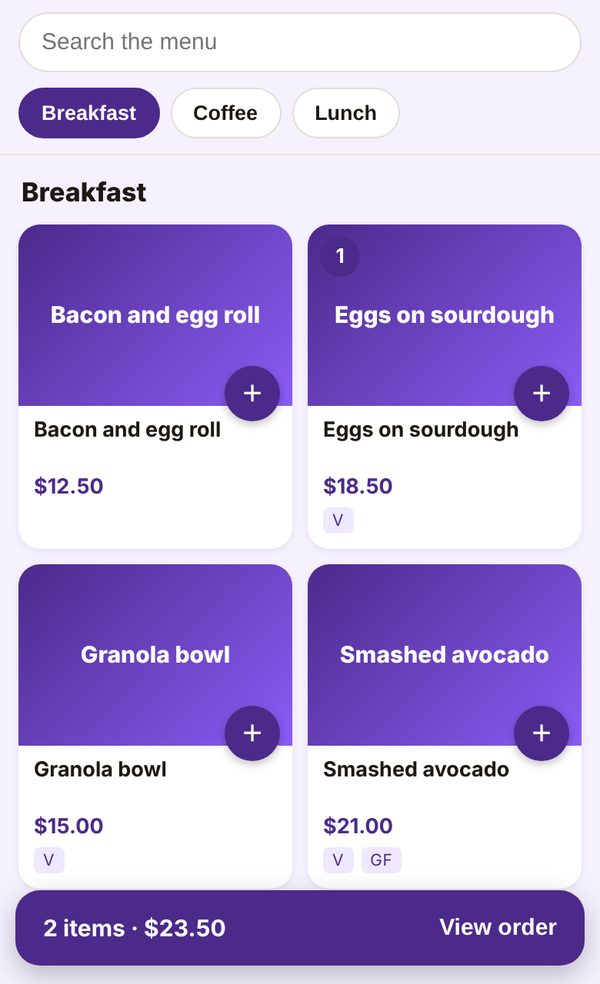
Your menu opens in the phone browser with your photos, descriptions and dietary tags. Guests search for a dish or jump between categories. Items with sizes or extras ask for the choices before they go in the order.
With our till, a new order pops up on the till with Accept and Reject. Keeping your own till? It appears on the Order Automation screen by itself within 15 seconds, with an alert. Tap Accept and the order goes to the kitchen screen or printer, by station, the same as an order your staff typed in. Tap Reject and it is cancelled, with any tracked stock put back.
Everything a guest orders from that table lands on the same table, so a second round of coffees joins the first bill. With our till, staff can add to the same table too.
Three ways to take payment. You pick one.
Staff handle it
The default. Guests order from the code. Your team accepts the order, brings the bill and takes payment, on our till or your own.
Guests pay on their phone
After you accept the order, the page shows what the table owes. Guests pay the whole bill, an equal share between 2 and 12 people, or any amount they choose, with an optional tip.
Guests pay at the counter
For counter-service cafes. The guest orders and gets an order number. The order stays off the kitchen screen until you take payment. On your own till, take payment there, then tap Accept on the Order Automation screen.
You choose once, on the Billing page, and it applies to every table.
Phone payments go straight into your own Stripe account. DineHopper adds no fee to them; only Stripe’s usual processing fee applies, as with any online checkout. Phone payment needs Stripe connected before you can switch it on. The tip choices on the phone page are No tip, 10%, 15% or an amount of the guest’s choice, and a phone payment appears on the table like any other card payment.
Your menu, set up for a phone.
- Your photos, descriptions and dietary tags on every item
- A search box and category buttons, so nobody scrolls through the whole menu
- Sizes and extras chosen before an item is added
- Menus that change with the time, such as breakfast to lunch, picked for you automatically
- Scheduled prices such as happy hour, shown at the price in force right now
- Items you mark as till only never appear, so staff buttons such as a plastic bag stay off the guest menu
Suggestions you control
Write a rule such as “when the order has a burger, suggest chips” and guests see the suggestion with one tap to add it. These are rules you write, not guesses by a computer, and the price is checked again when the order is sent.
No fee per order.
QR ordering comes with the Lite plan and above, with our till or your own. Lite is $89 a month ex GST if you keep your own till, or $158 with our till. There is no charge per order and no setup fee. Lite covers up to 300 orders and bookings a month; Starter and above have no limit. See the pricing page for every plan, or the guide to what a POS costs for the full picture, including hardware and card fees.
Common questions.
Do guests need to download an app?
No. Scanning the code opens your menu in the phone browser. Nothing to install.
Do we have to accept every order?
Yes. Each QR order waits until a staff member taps Accept, and that is when it goes to the kitchen. With our till it pops up on the till. With your own till it appears on the Order Automation screen, which checks for new orders by itself.
Can a table order more than once?
Yes. Each new order lands on the same table, so the bill stays in one place whether the order came from a phone or from your staff.
Can guests pay on their phone?
Yes, if you switch it on. They can pay the whole table’s bill, an equal share or any amount, with an optional tip. It needs Stripe connected first. If you leave it off, your staff take payment as usual.
Does it work for counter service?
Yes. Choose “Guests pay at the counter”. The guest gets an order number, and the order is held back from the kitchen until you take payment.
Can we keep some items off the guest menu?
Yes. Mark an item as till only and guests never see it. Staff buttons such as a bag charge or a tips button are usually set this way.
Can the QR menu change through the day?
Yes. If you have a breakfast and a lunch menu, the page picks the right one by the time, so guests only see what you are serving.
Does DineHopper take a cut of phone payments?
No. There is no DineHopper fee on a QR order. The only fee is Stripe’s own processing fee on a phone payment.
Related pages.
Commission-free online orderingRestaurant table bookingsWhat a POS costs in Australia